

Now we need at least one featured Post to highlight on your home page. You also have the ability with our themes to feature a separate unique Post on each Category main page (e.g. the “home page” for a Category). For example, you can have a Welcome Message that you feature in your home page, and for your Trips section, you can feature a separate post.
To learn more about the options you have to control the Featured Area click here >>
On this page, learn about:
- The Featured Area >>
- How to Feature a Post on Your Homepage >>
- How to Feature a Post in a Category >>
- How to Feature a Post in the Featured Sidebar Widget >>
- How to Feature a Picture in your Featured Post >>
- A Few More Options >>
Featured Area
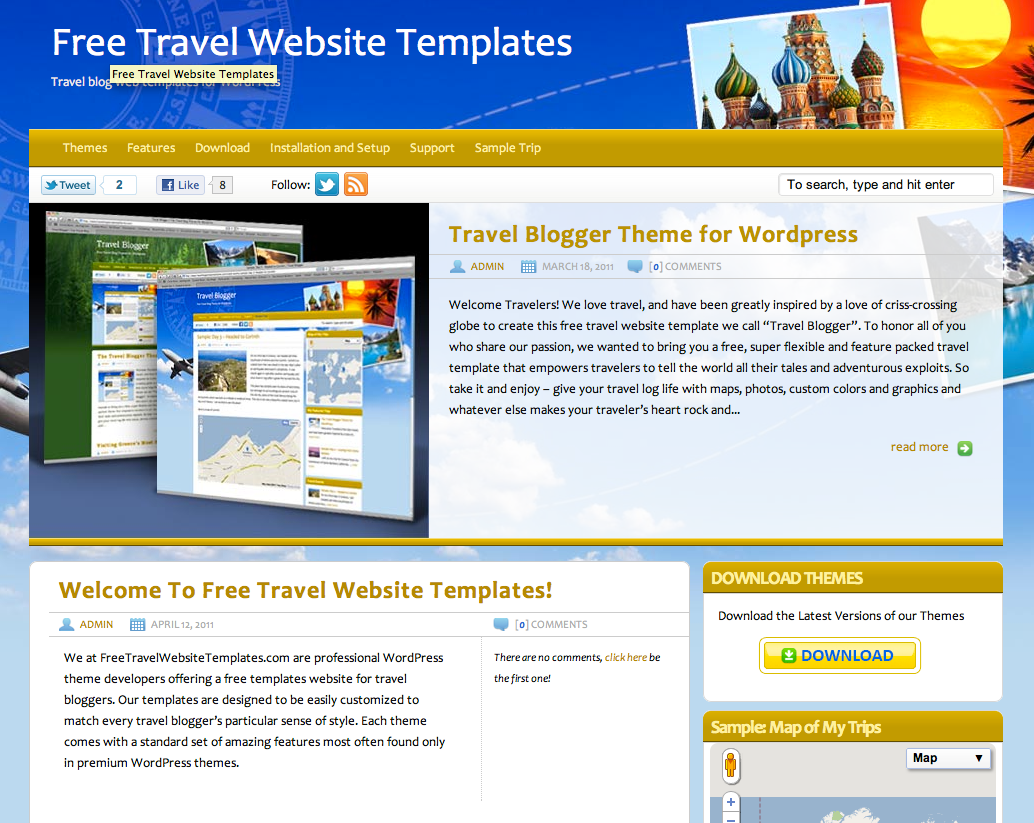
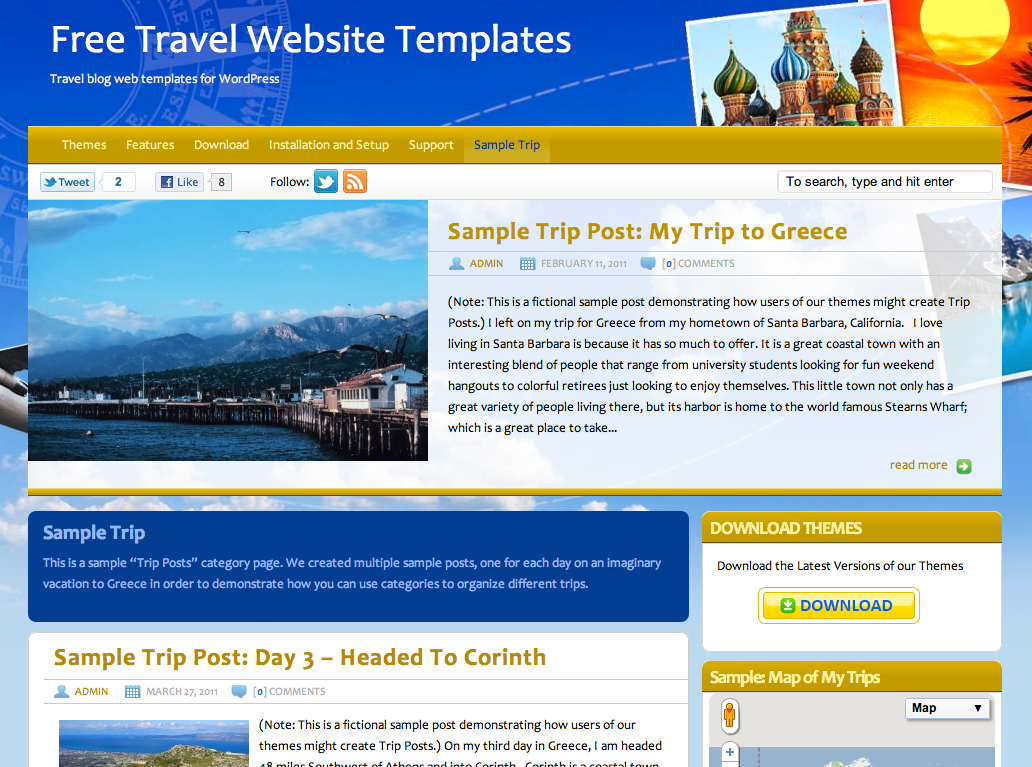
- The Feature Post Area is located near the top of your site page, directly under the menu. (See Fig A & B)
- To feature a Post on the Home Page
- Open (edit) a Post you want to feature.
| FIG A: Home Page Featured Area |
 |
| FIG A: Category Page Featured Area |
 |
To Feature a Post on Your Homepage
Depending on the settings you configured for the Feature Post Area, your featured post will either show up on just your home page, or all of your other pages as well. Only the most recently updated post with this option selected will be displayed.
- Go to POSTS > POSTS and edit the Post you want to feature
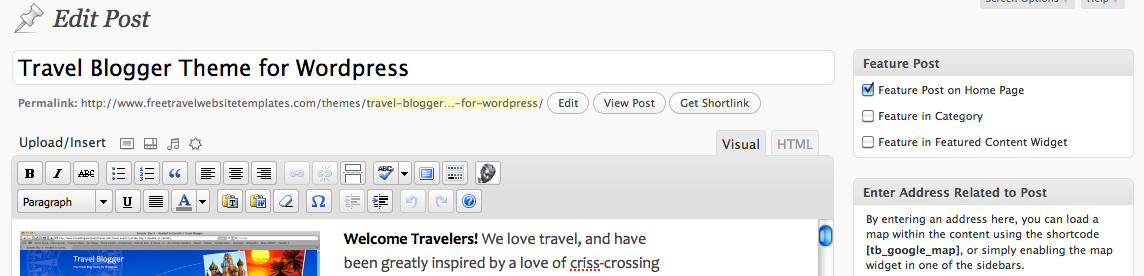
- In the right column under Feature Post, check the box next to “Feature on Home Page” (See FIG C)
- Click UPDATE
| FIG C: Set a post to feature on the home page |
 |
To Feature a Post in a Category
When you assign a post to be featured on its assigned category page, that post will be featured on the category page that the post is assigned to. Only the most recently updated post with this option selected will be displayed.
- Go to POSTS > POSTS and edit the Post you want to feature
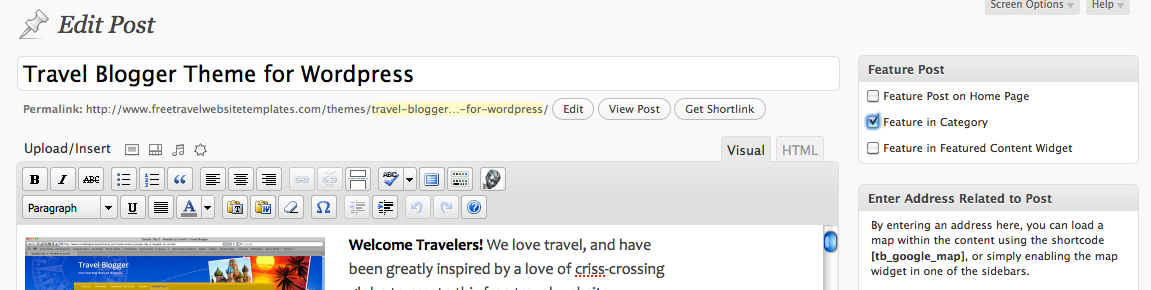
- In the right column under Feature Post, check the box next to “Feature in Category” (See FIG D)
- Click UPDATE
| FIG D: Set a post to feature on its assigned category page |
 |
To Feature a Post in the Featured Content Sidebar Widget
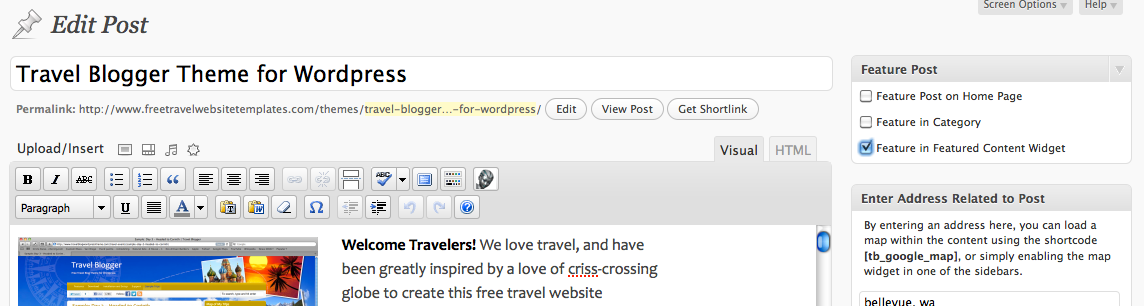
The TB Featured Content Widget will display a set number of the most recent posts that you have selected this option for.
- Go to POSTS > POSTS and edit the Post you want to feature
- In the right column under Feature Post, check the box next to “Feature in Featured Content Widget” (See FIG D)
- Click UPDATE
| FIG E: Set a post to feature in the TB Featured Content widget |
 |
To Feature a Picture in your Featured Post
If you want a thumbnail image for your post to show up wherever you have featured it (home page, category page, blog roll or widget) you must set a specific “Featured Image” in the post.
- While editing the Post, go to the right column, and under the Featured Image area click SET FEATURED IMAGE.
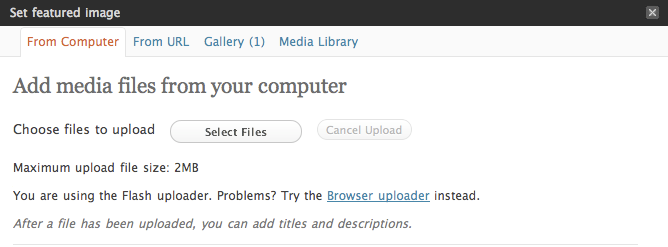
- Click SELECT FILES from your computer, and select the image that you would like to feature from your computer (See FIG F)
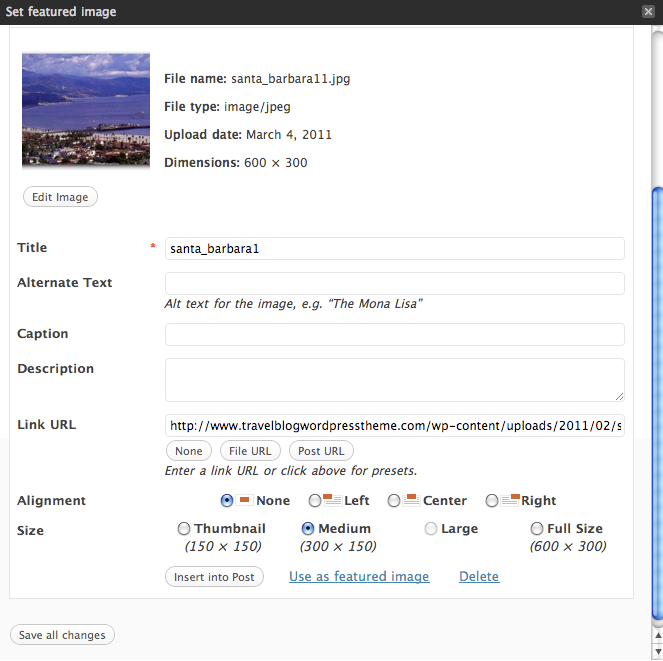
- Set the image properties: Enter correct title and description, choose an alignment, choose a size. (See FIG G)
- Click USE AS FEATURED image.
- Then, if you also want to insert the image into your post, click INSERT INTO POST.
- Click SAVE CHANGES
- Once back in the Post, click UPDATE under the Publish area to save your post.
| FIG F: Select an image to feature |
 |
| FIG G: Set image properties |
 |
A Few More Options
The choices for featuring a post under the Feature Post section of your post editor are very broad. Not only can you use the options described above, but if you wanted to feature a post in all three areas, your homepage, a specific category page, and the Travel Blogger Featured Content widget, then you could. You can also choose to display other posts in just the category and Travel Blogger Featured Content Widget. You don’t just have to pick one option under the Feature Post controls – you can select multiple options and they will all work.
THE END!
That’s it! You have finished the basic setup of your new Travel Blogger WordPress theme. Now you can feel free to experiment and customize it as you see fit. The next stage is adding content to the site. You can start by adding trip posts. See Creating Posts here.
For more on how to use the specific Features of this theme go here >>
<< Setup Widgets :BACK | NEXT: Create Posts >>


Hi! I’ve noticed that when I select a post to be the featured post, it also shows the same post on the home page in the normal blog. Therefore there is a double up. Is this expected?
Yes. The behavior depends on how you have configured the theme to display those “Featured Area” posts. Go under APPEARANCE > HEADER. There are controls at the bottom. If you select “Show Featured Area on Home & Category Pages Only”, but you have only set one Post to be featured on the Home Page, then that Post will show on all Category pages too. However, if you set different posts to “Feature in Category”, then those posts will be featured on their category pages. You can feature a post on a specific category by editing that Post, then selecting that option on the right. For more information see here: http://www.freetravelwebsitetemplates.com/featured-posts/
Actually, I am not sure I answered your question correctly. When you feature a Post on the Home Page, and if it is the latest Post you created, then yes, you will see both on the home page until you have other newer posts push that one down in the blogroll. The way you get around that is to back date your “featured” post so it doesn’t display in the blogroll.
Is there a way to feature a video? Or embed a youtube video in the featured post?
Hi Scott, I believe you are asking if a video can be used as the “featured image” on a post, so that a screen shot of the video shows up in the blog roll? If so, we are working to add this capability to the next updated theme version (coming very soon). However, the work around for now would be to take your own screen shot of the video, save the image file, then upload it as the “featured image” of the post. You don’t have to insert the image into the post, just make it the featured image. Then you can insert the video itself into the post.